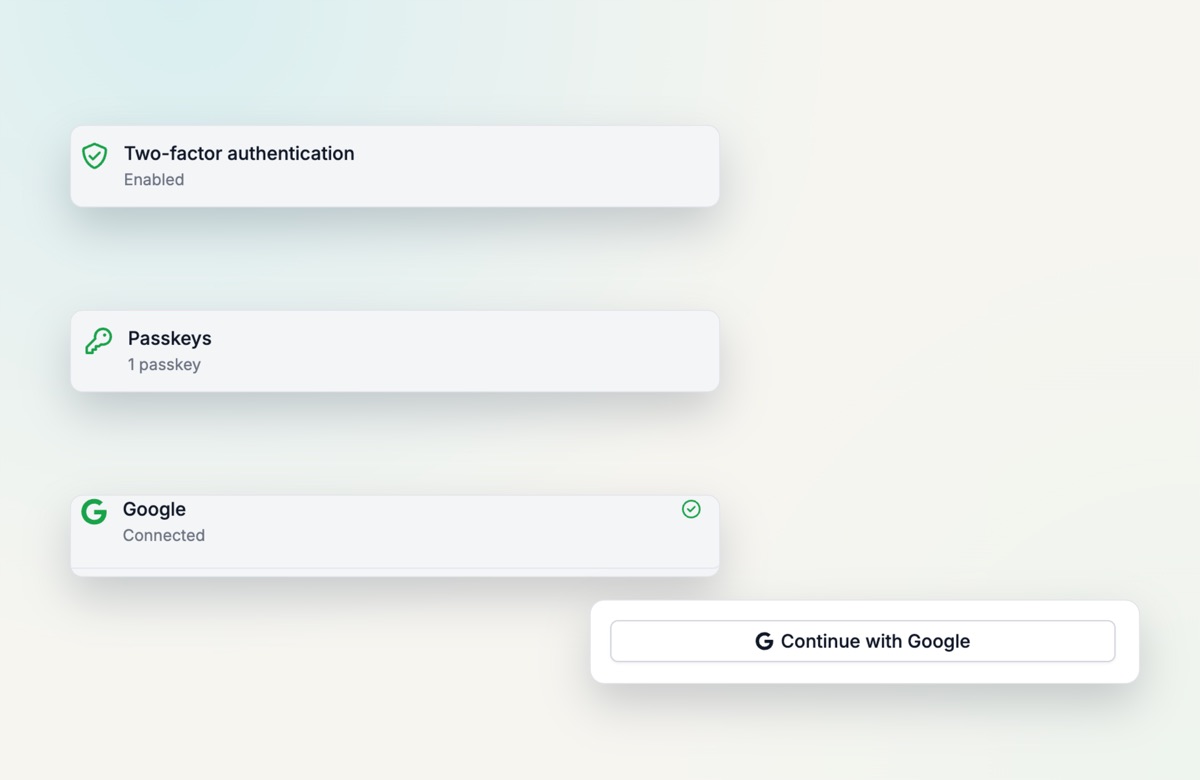
- Two-factor authentication with any standard authenticator app
- Passkeys with Face ID, Touch ID, Windows Hello or a security key
- Sign in with Google, linked to your existing account automatically
- Admins see which methods each user has, never the credentials
Three ways to secure your account
1. Two-factor authentication
Add a second step at sign-in with any standard authenticator app, such as Google Authenticator, 1Password, Authy or Bitwarden. In your profile, click Enable two-factor authentication, scan the QR code and confirm with a 6-digit code. You also get recovery codes for emergencies, which you can view or regenerate.
2. Passkeys
Register a passkey tied to your device: Face ID, Touch ID or Windows Hello, your phone, or a hardware security key. A passkey can replace your password or act as a faster second step. Add several and remove them one by one from your profile.
3. Sign in with Google
Use Continue with Google on the sign-in page. If your Google email matches an existing HireData account, it links automatically. If not, a new account is set up and connected. Connect or disconnect Google under Connected accounts in your profile.
What admins see
The Users list shows a security strip per user, with the 2FA, passkey and Google icons highlighted when a method is active. Open a user for the full breakdown. Admins see which methods are set up, never the credentials themselves.
Try it yourself
Go to your profile settings to enable 2FA, add a passkey or connect your Google account.