- Anything you type in ⌘K that is not a direct match becomes a question for AI
- Answers come from your real account data, not generic advice
- How-to questions pull the right help articles together
- Five starting categories with suggested questions
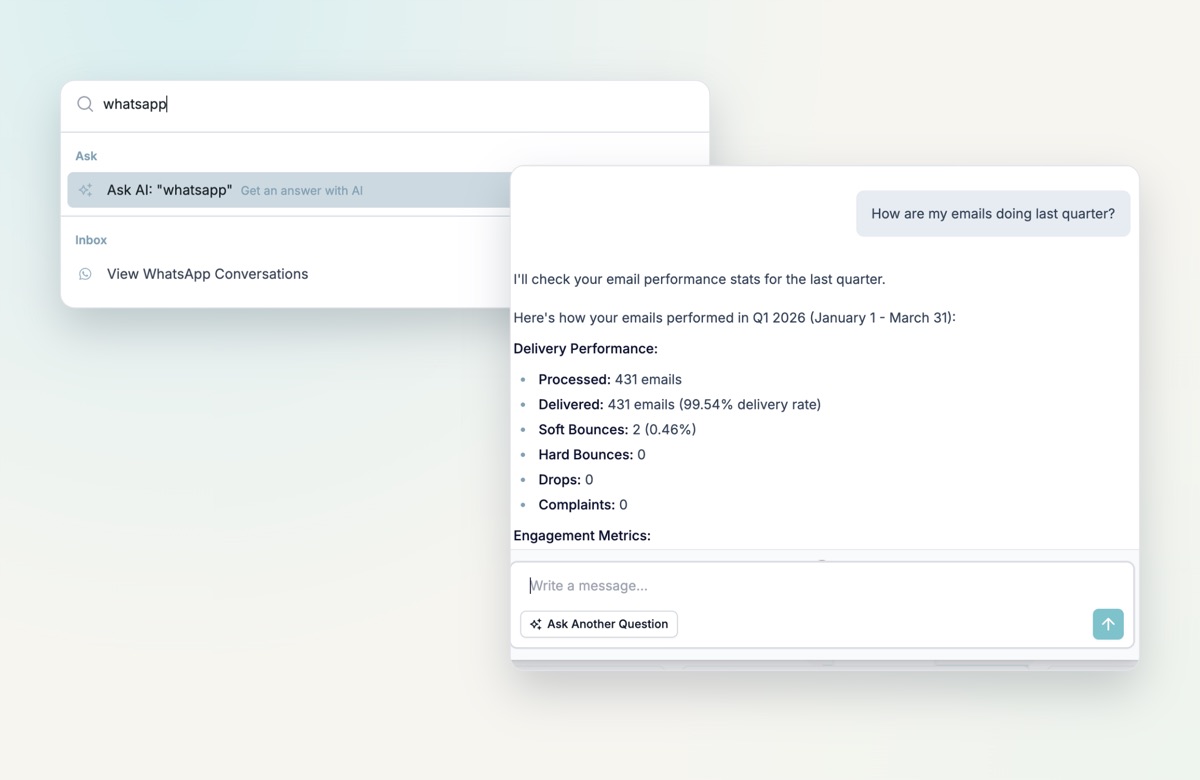
Ask AI, right where you already type
The command palette already takes you anywhere in the app. Now, anything you type that is not a direct match becomes a question. Search “WhatsApp”, for example, and Ask AI: “WhatsApp” is the first result.
Five starting points
Open Ask HireData AI and pick a category: Performance & Reporting, Automations, AI-powered Guidance, Insights & Anomalies or Growth Suggestions. Each one comes with suggested questions, so you do not need to know exactly how to phrase it.
Answers from your actual data
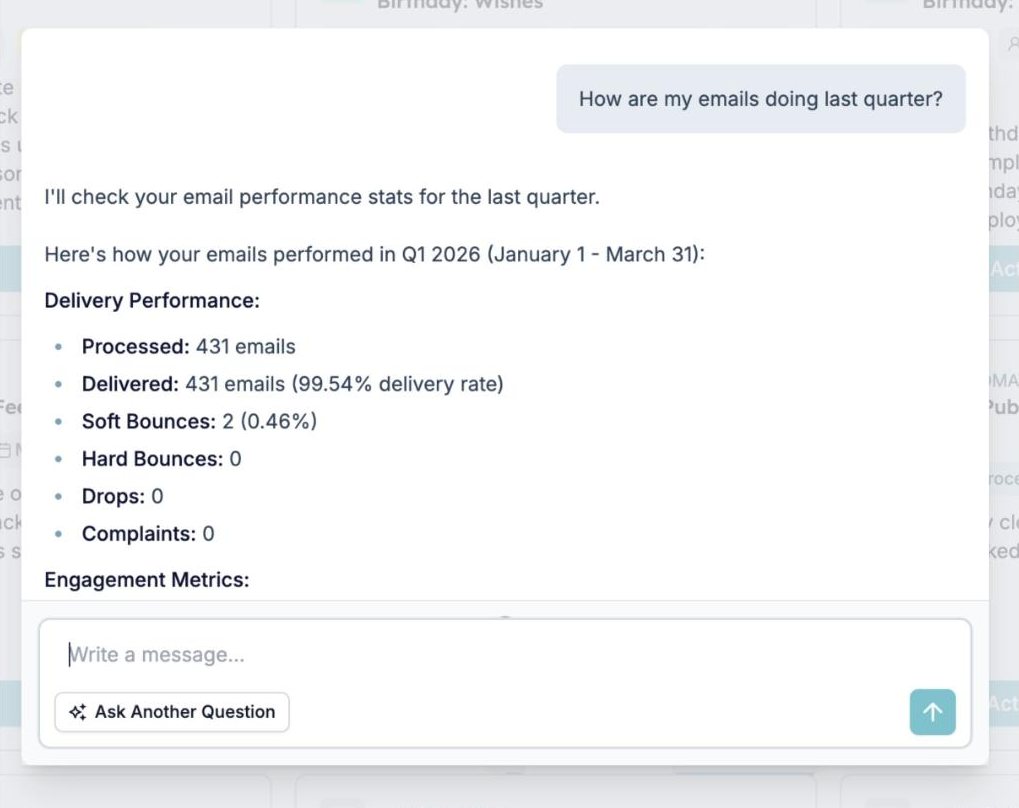
Ask “How are my emails doing last quarter?” and you get real numbers: emails processed, delivery rate, soft and hard bounces, drops, complaints and engagement. Questions about your unsubscribe trend or AI credit usage are answered from your account too.
And from the knowledge base
For setup and how-to questions, Ask AI searches the HireData knowledge base. Type “WhatsApp how to set up” and you get the relevant guides together, with the pages to visit next.
Try it yourself
Press ⌘K anywhere in HireData and pick Ask AI at the top.