 Connected
HireData for Vincere
Agents start from changes in Vincere, message candidates and contacts, and write tasks, activities and field updates back to the record.
What starts an agent
HireData receives supported Vincere events. Their fields and related records are available to the agent.
- WhenAn object and an event
You pick a Vincere object and the event that should start the agent.
- WhenAn application status changes
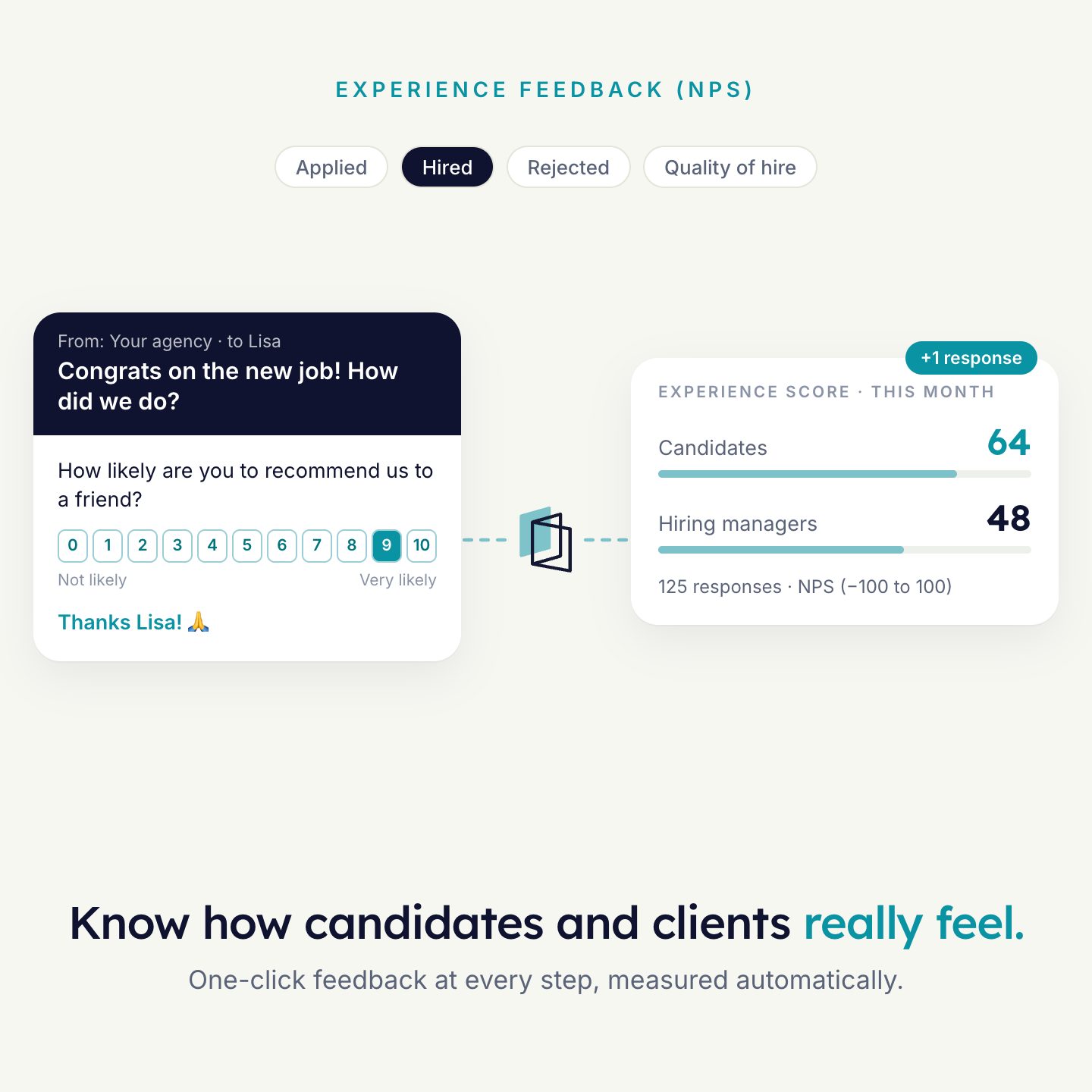
Example: an application moves to placed. A day later the candidate gets a survey.
- WhenOnly the records you want
Filters limit the agent to the statuses, candidates or jobs you choose.
- WhenRelated records come along
Select the relationships you need later, such as the candidate as recipient and a user as sender.
What an agent can do
These are the Vincere steps an agent can use. Your recruiter decides what happens with the result.
| Step | Kind | What it does |
|---|---|---|
| Task | Add | Schedules a task in Vincere for a candidate, contact or job, or as a personal or project task. With subject, description, start and end date, reminder and assignee. |
| Activity or Item | Add | Adds a candidate, candidate note, candidate URL document, company, contact, job or meeting. |
| Update Object | Update | Updates the fields you select on a candidate, company, contact, job, meeting or task. The record is found by an identifier, such as its ID. |
| Update GDPR | Update | A separate update step for GDPR in Vincere. |
| Email, WhatsApp or survey | Message | Personal messages and surveys, filled with values from Vincere. See WhatsApp and Email. |
What is read and written
The objects an agent works with in Vincere, and what it can do with each.
| Object | Supported | Notes |
|---|---|---|
| Application | Trigger | A status change starts an agent. |
| Candidate | AddUpdateTask | For example as the recipient of a survey. |
| Contact | AddUpdateTask | |
| Job | AddUpdateTask | |
| Company | AddUpdate | |
| Meeting | AddUpdate | |
| Task | AddUpdate | Candidate, contact, job, personal and project tasks. |
| Candidate note | Add | |
| Candidate URL document | Add | |
| User | Read | Sender of a message or assignee of a task. |
HireData imports your users, objects, fields and statuses after you connect, and syncs them again every day. A new status or custom field is available right away after a manual sync.
How to connect
- Open the Vincere app in HireDataClick New Connection.
- Enter your Vincere detailsYour tenant, client ID and API key.
- Log in to VincereUse a user with admin rights and give consent.
- Test, then activateTest with a safe record. Check the run in HireData and the result in Vincere.
What you need
- Your Vincere tenant
- A client ID and API key. Your Vincere account manager can provide them.
- A Vincere user with admin rights

See it run on your own vacancies.
Answer four short questions and watch the agent for your problem. Then book 30 minutes with us.