Automations: where agents get their job.
Automations is the builder in HireData. You choose what starts the work in your ATS, which steps the agent takes, and where a recruiter approves before it continues.
For the people who run recruitment operations at an agency. Team members get a role that decides who can build, edit or only view.
Event, automation, run, task.
Four parts. Knowing them makes it easy to build an automation and to see afterwards what happened.
Event
Something changed in a connected app. A candidate was created, a match changed stage, a placement was completed.
Automation
The rules you define: a trigger, filters that decide who continues, optional delays or branches, and one or more tasks.
Run
One event going through one automation. Every candidate gets their own run, and the run records the exact path.
Task
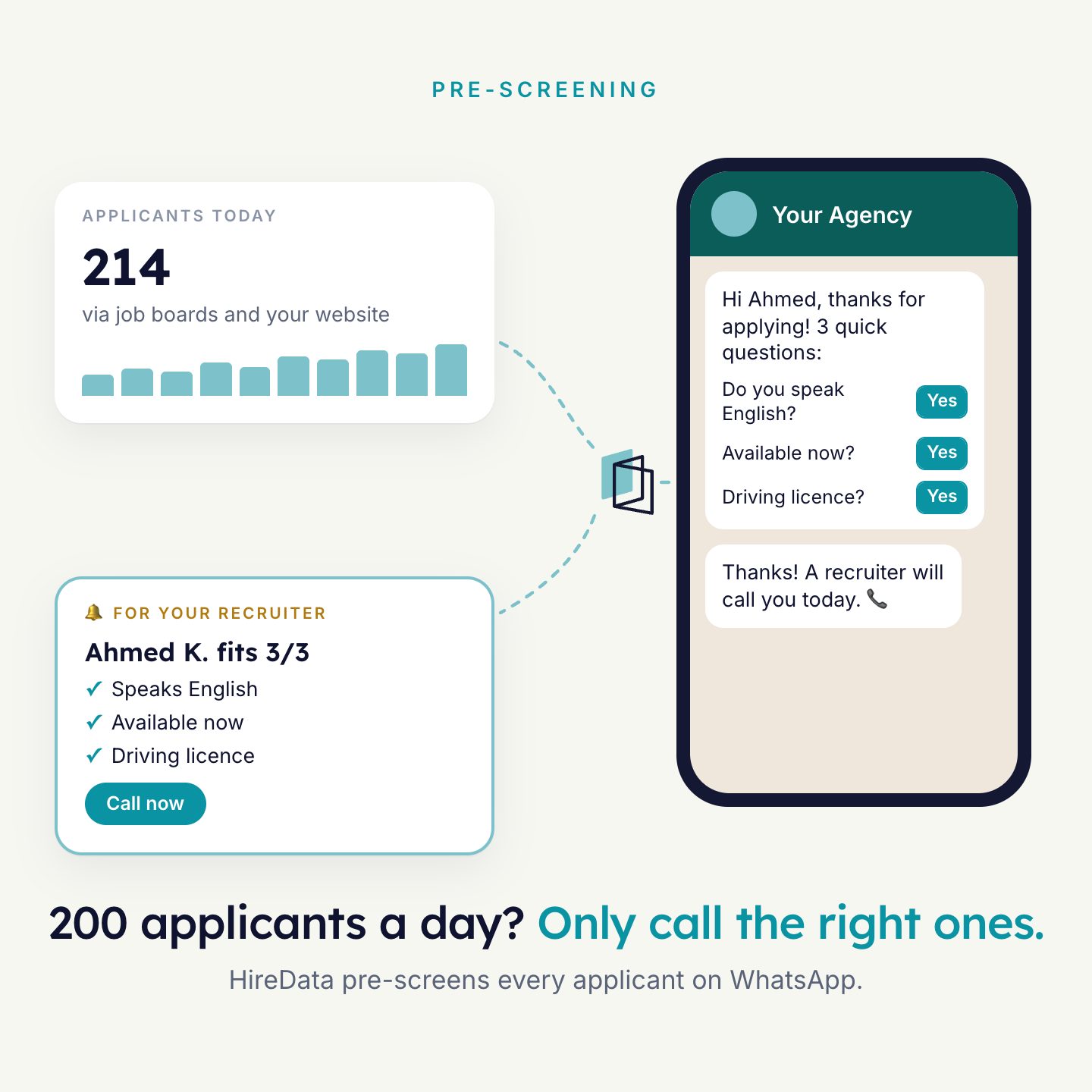
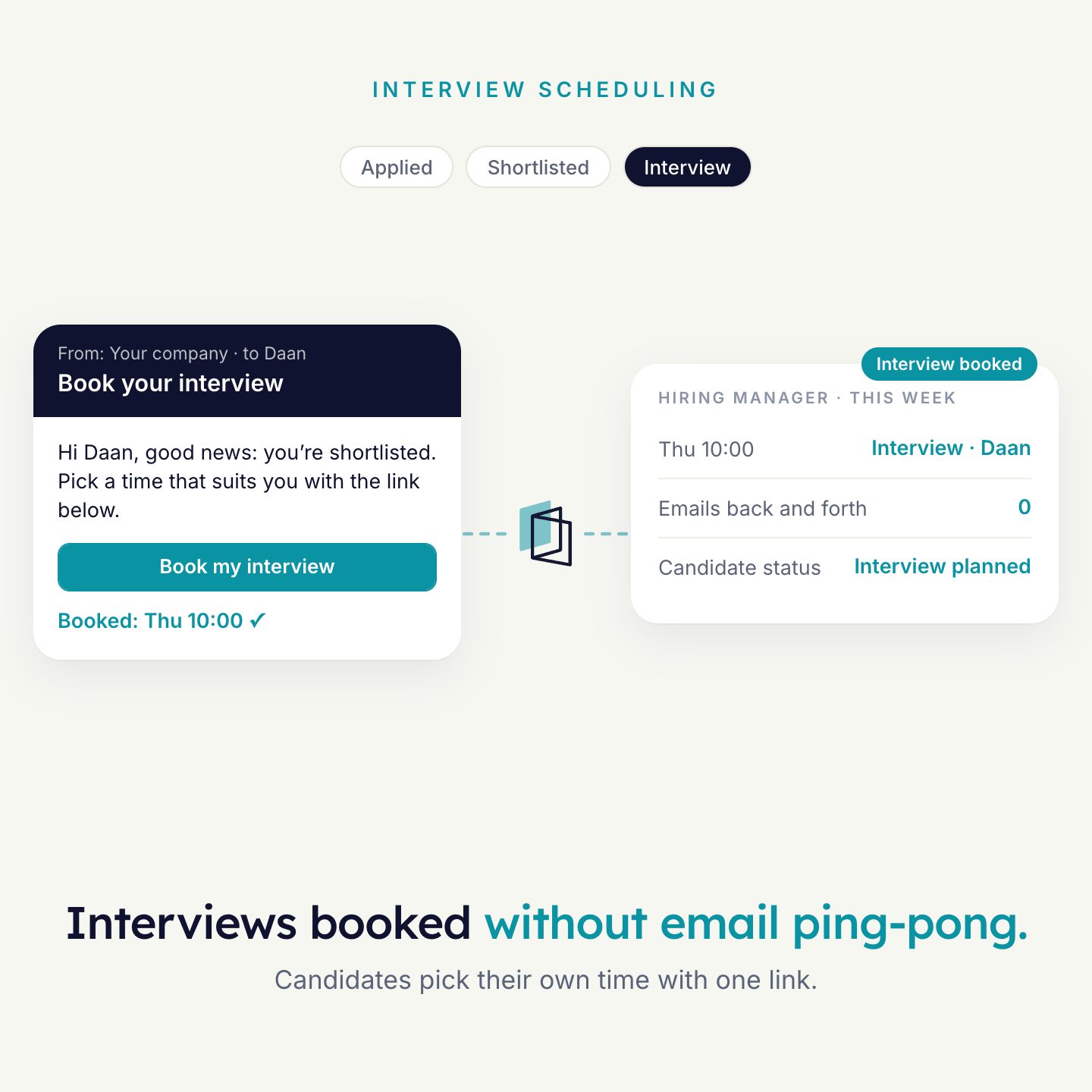
One action: send an email or WhatsApp message, send a form, update a field in your ATS, create a recruiter task.
Steps grouped by what they do.
Click + and pick a step. You find the right one without knowing its technical name.
- FlowFilterSplitDelayLoop
- SearchFind a candidate, contact or other record
- OutreachEmailWhatsApp messageWhatsApp surveyRatecard survey
- RecordsAdd a recordUpdate a record
- AI and toolsAsk AIHTTP request
- Human in the loopReview
- LifecycleArchiveRestoreDelete
- StartAn event in your ATSA schedule
Beta. This grouping is the new automation builder. It is switched on per workspace. Existing automations keep working as they do today.
A recruiter approves before it continues.
Add a Review step where the agent should wait. The run pauses until someone decides. Approve and it continues with the next step. Reject and it stops.
- One queue for the team, with the requests assigned to you first.
- Each request shows the content to review, the criteria, and links to the automation and the run.
- Admins see all requests and can reassign them.
Beta. Reviews is switched on per workspace.
- ManualA person always reviews.
- ConditionalA person reviews only when the conditions you set call for it.
- AI-assistedAI checks the content against your criteria first, and asks a person when it is unsure or information is missing.
Test first. Keep limits on.
An automation must be active before it acts on new events. Until then you test it.
- Test with a user: run the whole automation on one person, who receives the email or WhatsApp as if it were live.
- Preview a single item: see how one record would be handled, without running any task.
- Safety limits: cap how many emails one address gets and how many conversations one phone number gets, in total and per automation.
- Cooling-off period: a buffer after a conversation ends before a new one can start.
- Run scheduled
- Run started
- Interaction started
- Email sent
- Run finished
See exactly what happened.
Events
Every incoming event is stored. Open one to see its fields and which automations handled it.
Runs
A timeline per run: which conditions passed or failed, the delays and branches, and every task that completed, stopped or was cancelled.
Task history
Every completed and cancelled action, with the event it came from.
Starts in your ATS. Ends in your ATS.
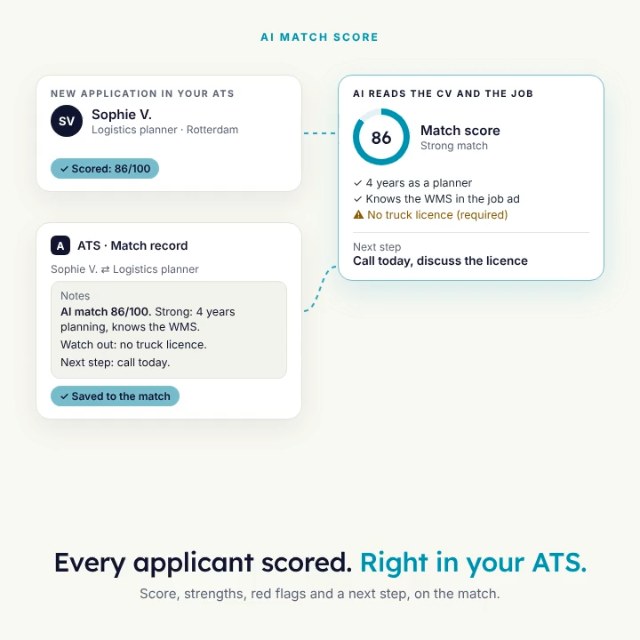
An automation starts from an event in your ATS or from a schedule. Its tasks write the result back: fields updated, an activity added, a task scheduled for a recruiter.
- TriggerA candidate, match, vacancy or placement changes
- AgentFilters, messages, forms and reviews
- Written backFields, activities and recruiter tasks in your ATS
Examples that use it
Each agent does one job well. Most agencies run a few together.

See it run on your own vacancies.
Answer four short questions and watch the agent for your problem. Then book 30 minutes with us.